Secure the Platform
The Identity module provides proactive security tools to protect the GlobalAI platform from unauthorized access, brute-force attempts, and credential compromise. These features are essential for maintaining security in air-gapped and private cloud deployments.
Monitor Reputation Scores and Trigger CAPTCHAs
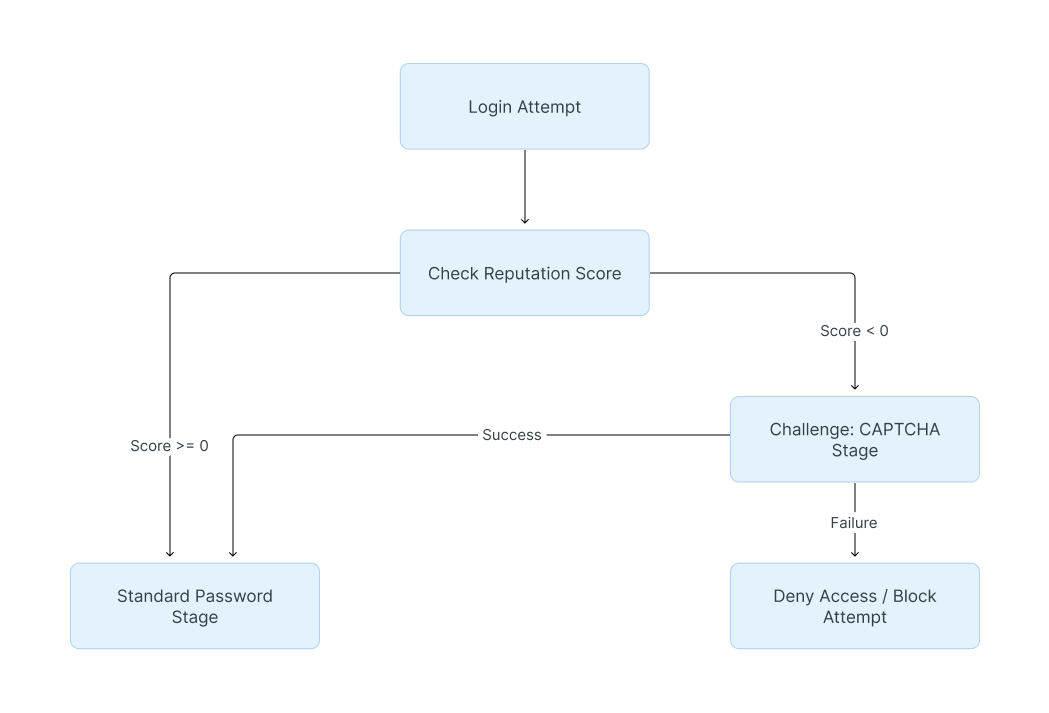
The platform tracks the health of recent login attempts per identifier and client IP using a Reputation Score.
- Positive Score: Each successful login increases the score by 1.
- Negative Score: Each failed login attempt decreases the score by 1.
Create a Reputation Policy
You can use a Reputation Policy to automatically prompt clients with a low score to pass a CAPTCHA test before they can continue.
To apply the Reputation Policy to a Flow:
- Navigate to Flows and Stages > Flows and select your active login flow.
- Go to the Stage Bindings tab.
- Bind your Reputation Policy to a configured stage, such as a CAPTCHA or MFA stage.
- Crucial Step: To ensure the policy executes correctly during the flow, set it to Evaluate when stage is run.
Execute Emergency Access Revocation
In the event of a security breach or suspicious activity, deactivating a user profile may not be enough if they have an active session. To immediately boot a compromised user from the platform, you must invalidate their active tokens.
- Navigate to Directory > Users.
- Select the specific user account to open the User details page.
- Invalidate Sessions: Click the Session tab. Select the specific device(s) and click Delete. This forces the user to authenticate again on those devices.
- Revoke OAuth Tokens: Click the OAuth Refresh Tokens tab. Select the applications and click Delete to remove distributed tokens.
- Clear MFA: If a user's device is lost, use the MFA Authenticators tab to remove registered authenticators.
Manage Service Account Tokens
- Navigate to Directory > Tokens and App passwords.
- To terminate access for a service account, locate the specific API Token or App password in the list and click Delete.
Configure Notification Rules
Administrators can set up automated alerts for critical system events. These notifications ensure that security incidents are addressed immediately.
1. Create a Notification Transport
A transport determines how the notification is delivered.
- Local: Delivers alerts within the platform UI (default-local-transport).
- Email: Sends messages via the global email configuration (default-email-transport).
- Webhook: Sends data to external endpoints.
2. Create a Policy
Define the logic for which events trigger a notification.
- Event Matcher Policy: Use this for simple matching, such as failed logins or deleted objects. Note: An event must match all configured fields in the policy to trigger.
- Expression Policy: Write custom code to filter events by specific criteria (e.g., matching a specific IP network).
3. Create and bind the Notification Rule
- Navigate to Events > Notification Rules.
- Click Create to add a new rule.
- Select the appropriate Notification Transport and the Group of users to receive the alert. (Notifications only trigger when a group is selected).
- Save the rule, then expand its details in the list.
- Click Bind existing Policy/Group/User and select the policy you created to finalize the automation.
Before binding a notification rule, ensure your Notification Transports are correctly configured. The email transport relies on the global email configuration, while Webhooks require the specific destination URL to be defined within the transport's settings.
Review Audit Logs and Impersonation
The Identity module maintains a comprehensive record of all platform activity. This is your primary tool for forensic investigation and compliance auditing.
- Navigate to Events > Logs.
- Review the recent activity, which includes:
- Login Success/Failure: Tracks who accessed the platform and from where.
- Policy Denials: Shows which security policies blocked a specific login attempt.
- Audit Impersonation: An Admin can assume the identity of a user via the Impersonate button in the Directory > Users list or user details page.
- Accountability: When prompted, the administrator must provide a Reason for the impersonation, which is permanently recorded in the system logs.
Manage SSL Certificates
SSL certificates used for the platform are managed within the System menu.
- Navigate to System > Certificates.
- View the list of Certificate-Key Pairs, their private key status, and their Expiry dates.
- Ensure these certificates are kept up to date to maintain encrypted communication.
Related articles
Now that you have secured the platform, you can finalize your setup by reviewing your identity architecture.